Glean Agents are a comprehensive platform feature designed for building, orchestrating, and managing AI agents within enterprises, aimed at scaling AI adoption across various business operations. They enable users to create personalized agents using natural language and offer a library of pre-built agents that can be tailored for specific tasks. Glean Agents operate using an agentic reasoning engine that supports complex workflows driven by company data and external information. This platform not only facilitates the construction of agents but also incorporates governance measures to ensure data security and compliance, making it a strategic tool for enhancing productivity and automating processes across departments.
In this lab we will:
- Explore an existing agent
- Build an Agent from Scratch
A Glean Agent is an AI-powered tool that automates tasks for you, from simple to complex workflows, by handling actions like gathering information, summarizing data, and making decisions based on previous steps.
You can set up an Agent to start working when something specific happens, and it will carry out a series of actions that adapt to changing inputs, streamlining your work and saving you time on repetitive or detailed processes.
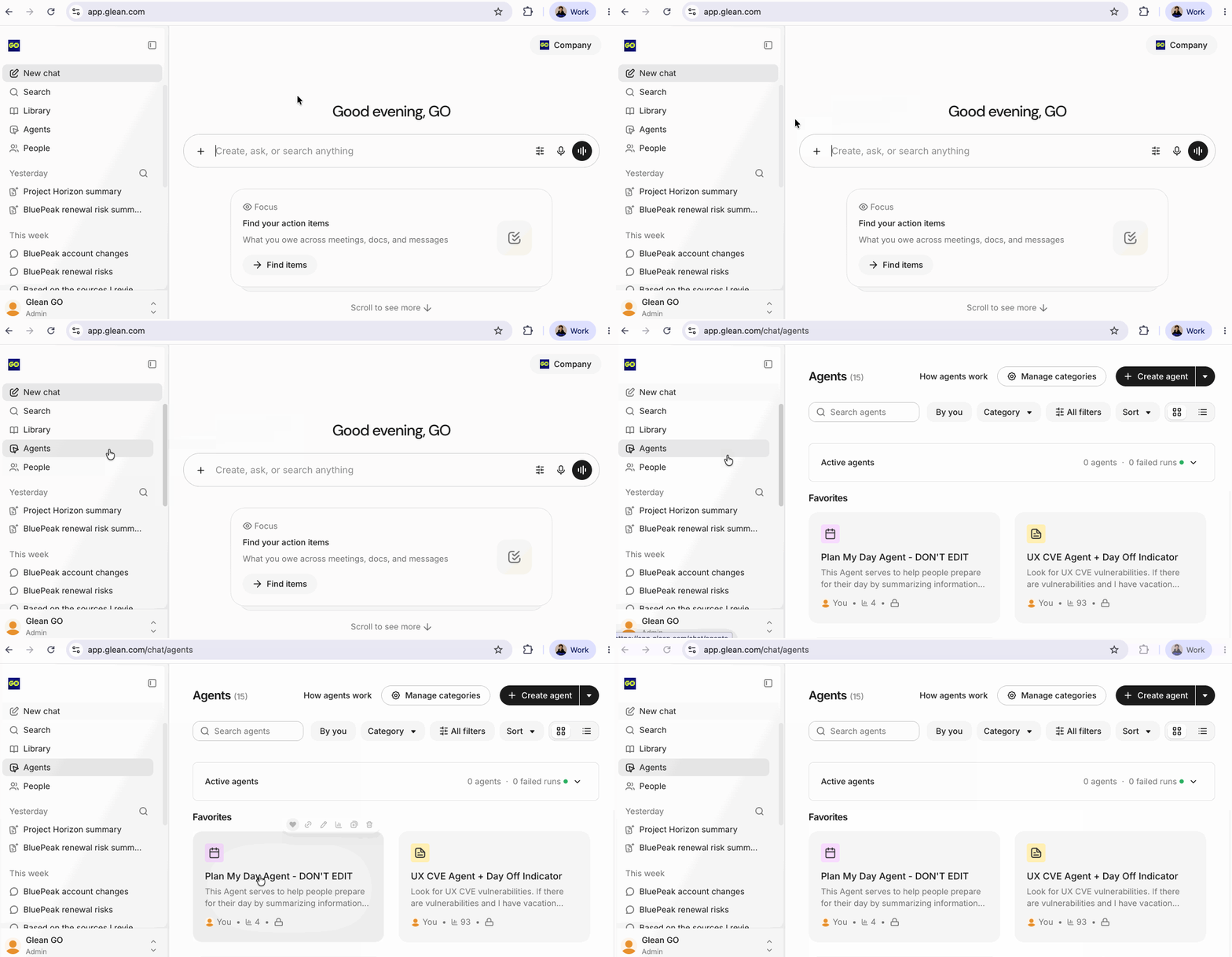
Who are agents for?
Agents are intended for various types of users within an enterprise, including:
- Builders: Individuals who create custom AI experiences. They often fall into subgroups such as function ops, IT personnel, power users, and drive-by users who need solutions for one-off problems.
- Consumers: Users who utilize agents created by others but are unlikely to develop their own agents. These include employees across titles and functions who benefit from the predefined tasks and automation provided by agents.
- Administrators: Responsible for managing and overseeing the adoption and governance of agents within the organization.
Examples of agents you might create
When it comes to creating agents, the possibilities are almost limitless. You're free to create agents to help you solve any task however you want. Here are some examples of agents you might create:
- Sales prospect outreach: Automates researching sales prospects and generating outreach messages.
- Support ticket next steps: Summarizes ongoing support ticket activities and provides suggested next steps for resolution.
- Engineering self-evaluation: Analyzes all of a user's past activity over a given time period to generate a self-evaluation document for performance reviews.
- Pull request reviewer: Automates the review and description generation for software pull requests.
- Meeting recap: Compiles a comprehensive review of a past meeting with action items, relevant documents, and experts to consult for additional feedback.
- Customer sentiment score: Mines internal company knowledge, conversations, support tickets, and more to generate a comprehensive satisfaction score.
- Daily Digest Agent: Provides a daily summary of relevant meeting notes, updates, and tasks that need attention.
By deploying these agents, you can automate complex tasks to save time, avoid repetitive chores, and improve outcomes for your coworkers and customers.
Before we dive into building an agent, let's examine one and test it out. This private sandbox instance of Glean has various pre-populated agents. For the purposes of this workshop we will explore the Plan My Day Agent.
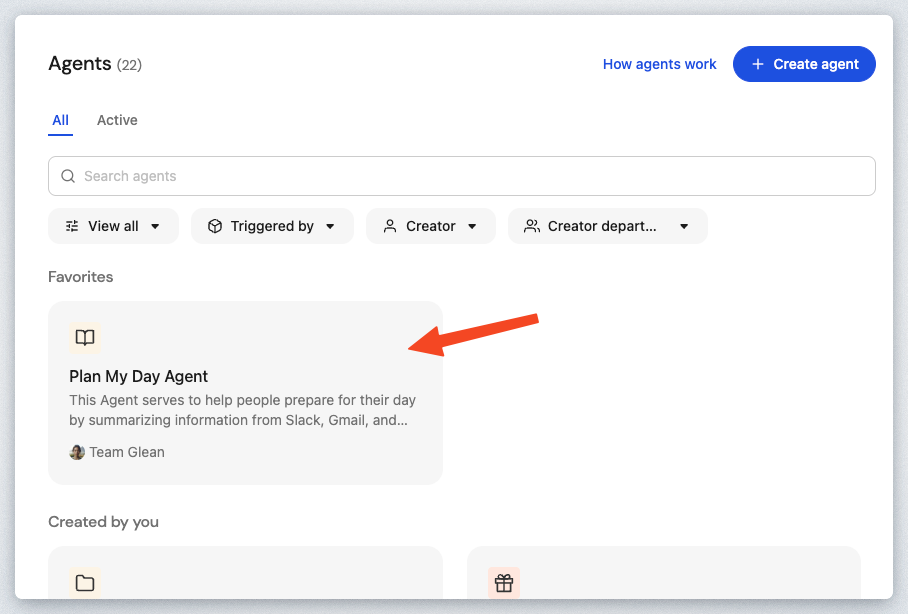
Click the Plan My Day Agent card under the Favorites section.
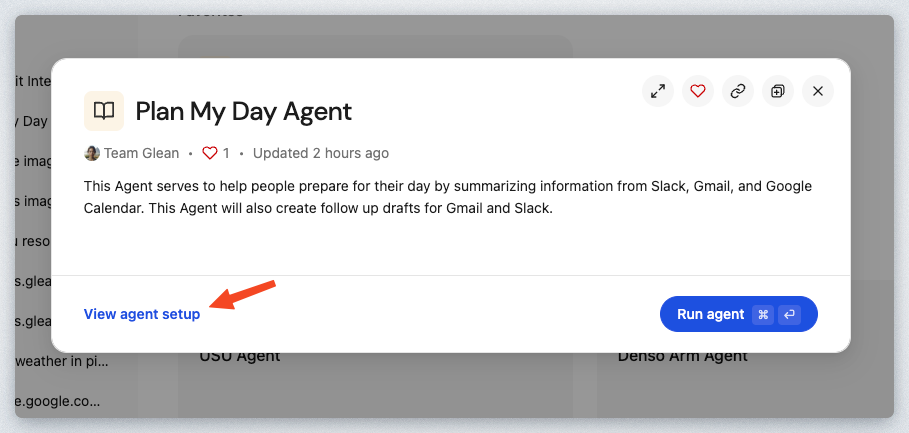
In the Popup Window select the View agent setup link to see the design of this agent.
You're now in the Glean Agent Builder in viewer mode. As the note states, you can edit and make changes to the Agent but you can't save them.
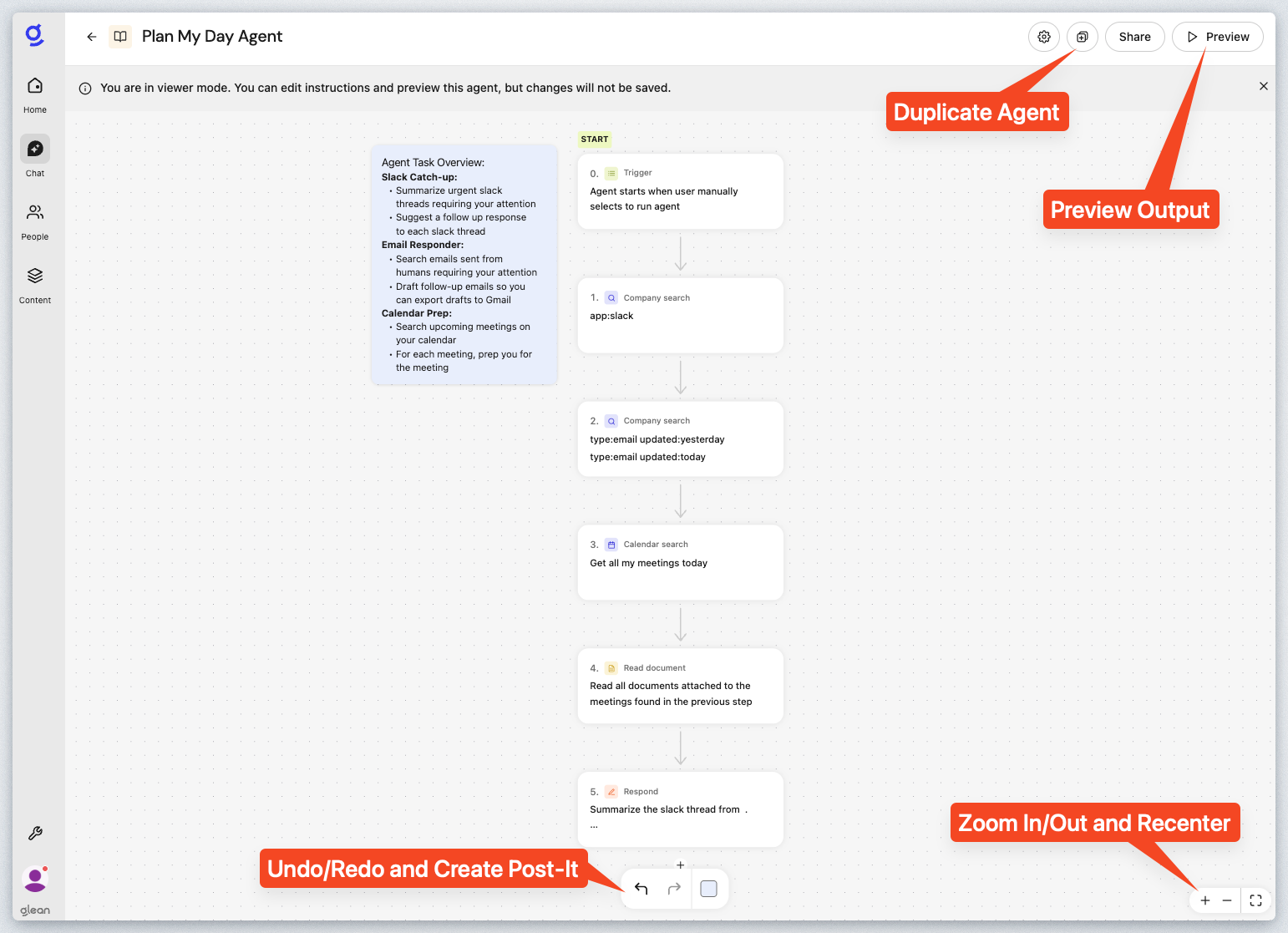
Use your mouse to navigate the Plan My Day Agent canvas. Clicking and holding down the mouse button will allow you to reposition the view. You can click on the Recenter button on the bottom right of the screen to reset the view.
Let's go ahead and walk through the different steps that make up this Agent.
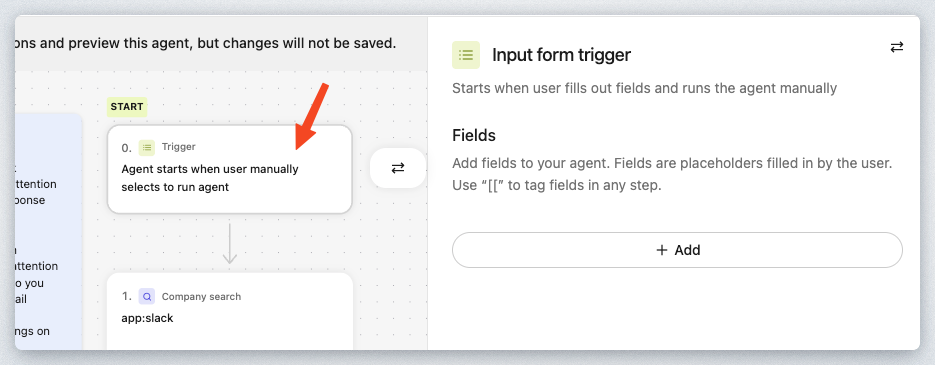
Step 0 - Trigger - Input Form Trigger
This defines how to trigger the Agent. For this one, it's an Input form trigger but this Agent doesn't have any fields configured.
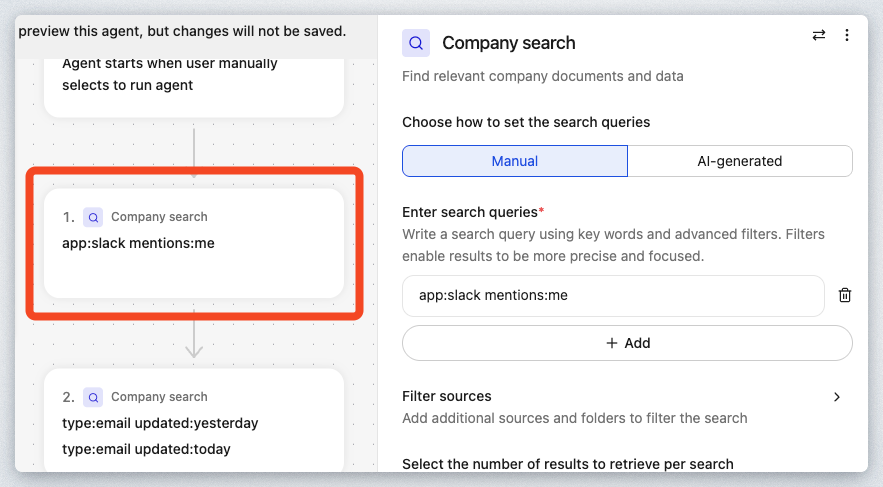
Step 1 - Company Search - Slack
Search Slack for all messages that mention the user running the Agent.
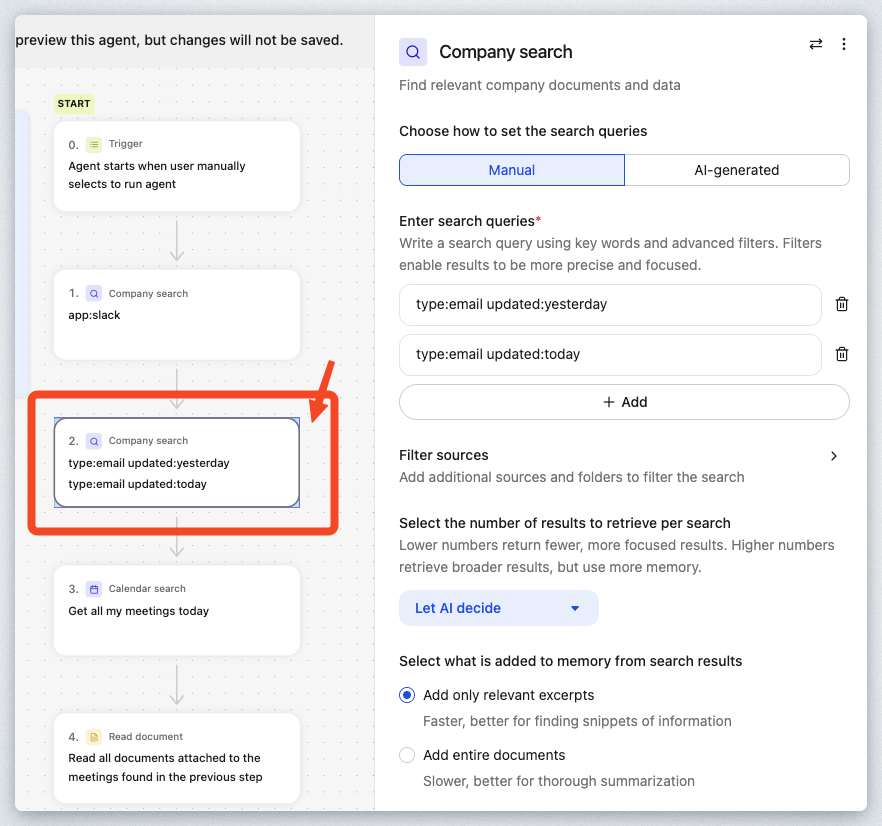
Step 2 - Company Search - Email
Perform an email search for all emails from yesterday and today. This searches across Outlook or Google Mail, depending on which one you have Glean configured to crawl and index.
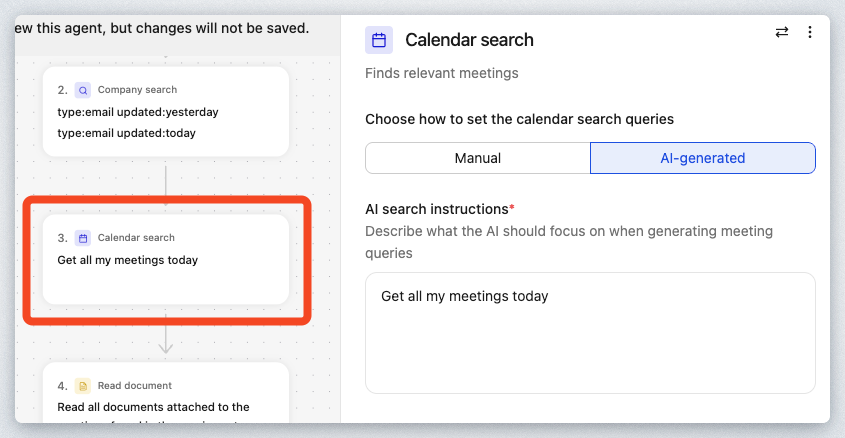
Step 3 - Calendar Search
Execute a Calendar search to find all meetings scheduled for today for the user running the Agent.
Step 4 - Read Document
Search for meeting notes from previous meetings that have a similar title
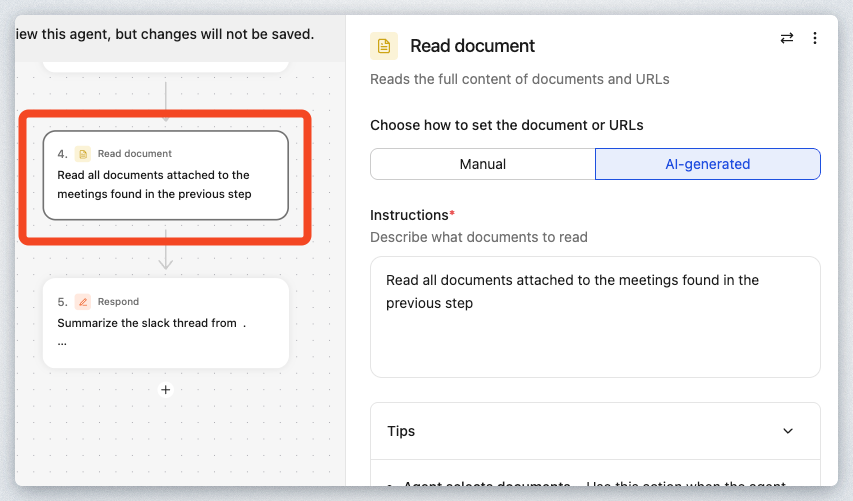
Step 5 - Respond
Respond to the user with all of the information desired in order to plan the user's day.
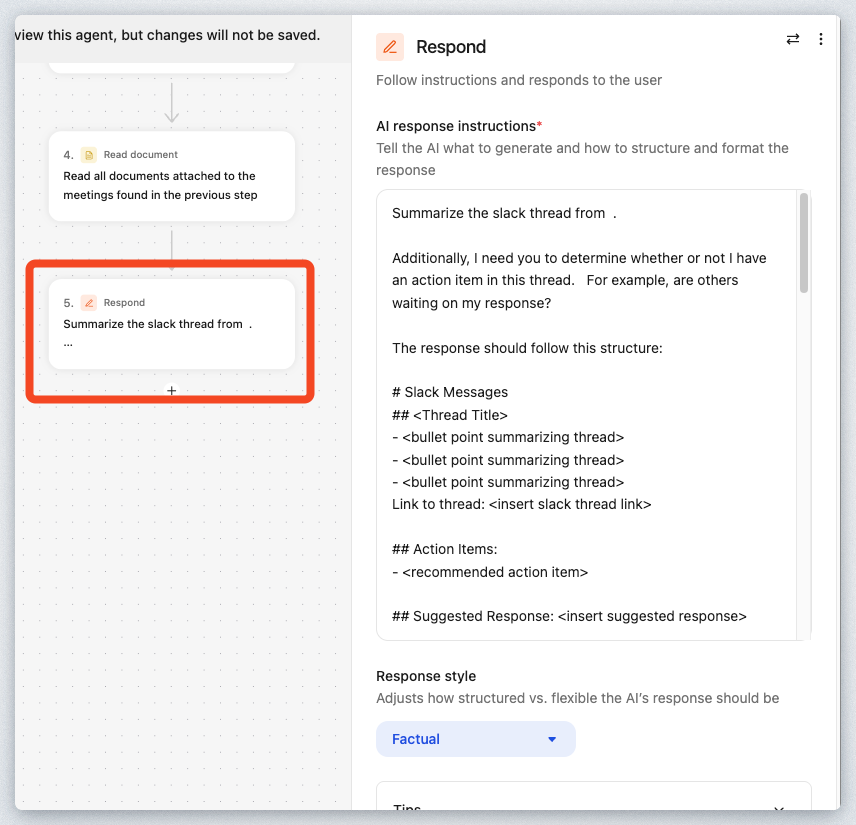
Here are the AI response instructions below.
As you can see, the author has control over the formatting of the response including adding additional instructions for the Reasoning engine to assist in the output. Note the Markdown syntax for the response formatting. While this is not required, it can be helpful since LLMs deeply understand the Markdown syntax.
Let's now execute this agent directly from the Design Canvas. Click the Preview button in the upper right corner to expand the test window on the left side of the screen as shown: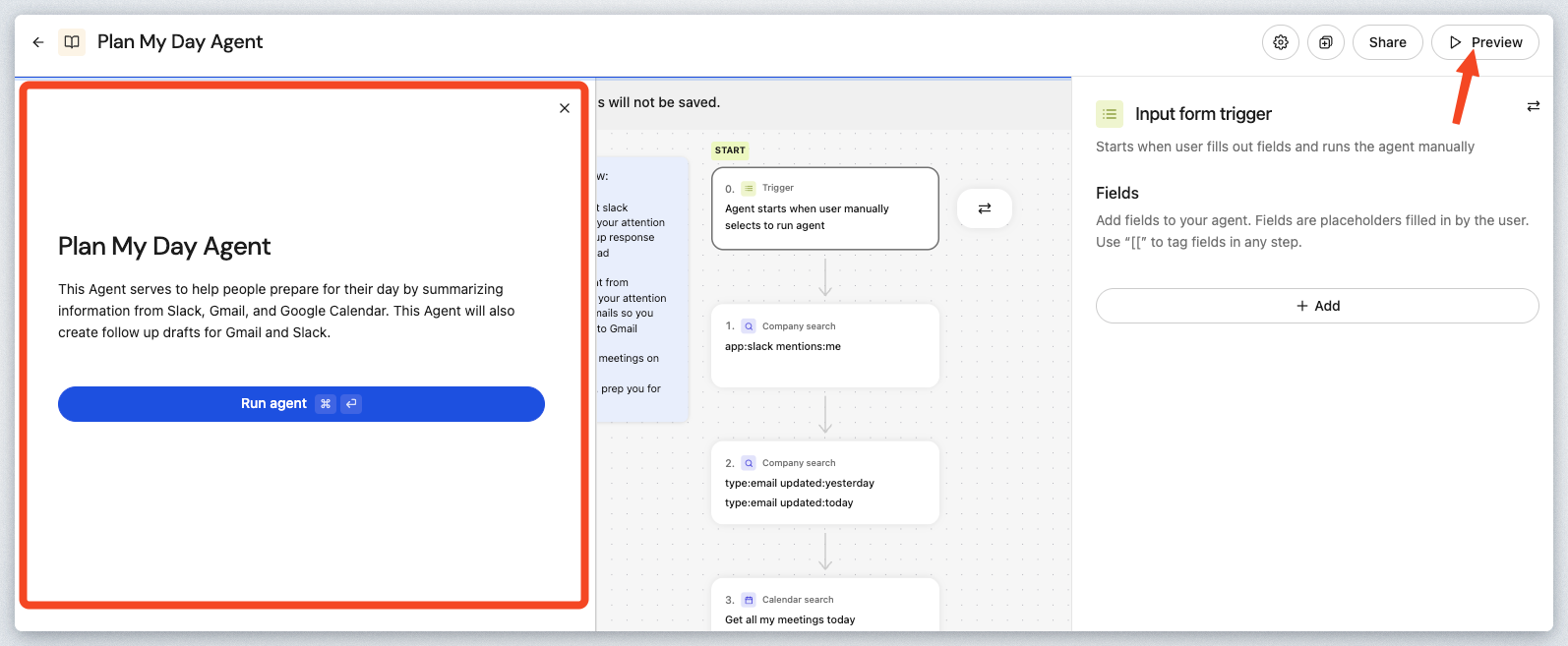
Click the Run agent button to execute the Agent.
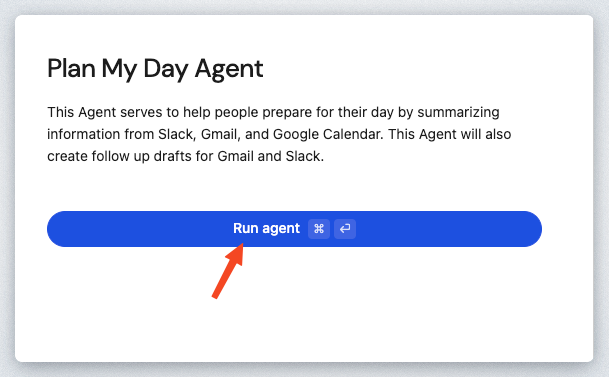
The Plan My Day Agent will start running through the defined steps. When it gets to the Respond step, you'll see the output in the preview window like the example below. This will vary from user-to-user and workshop-to-workshop.
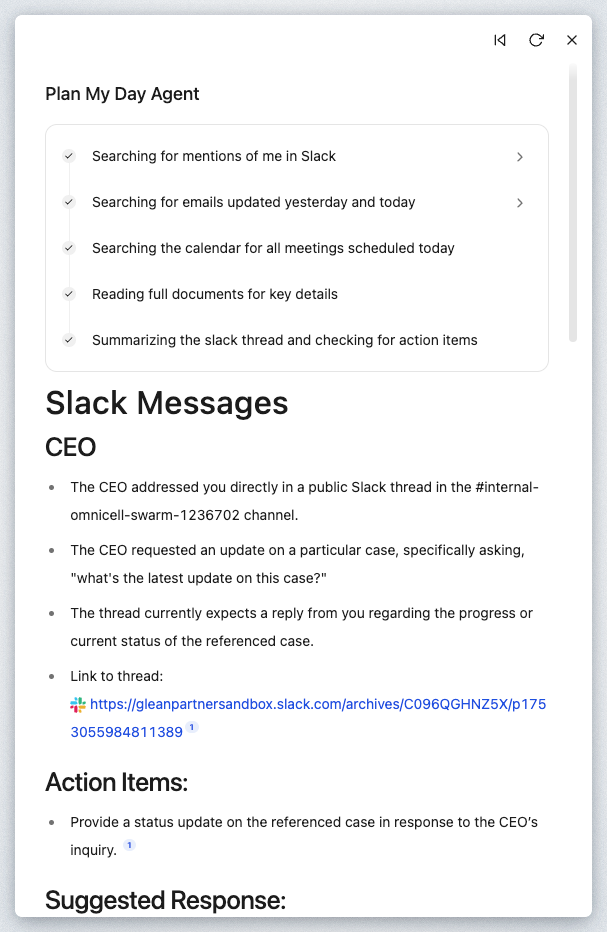
The above example could be beneficial as an Agent that runs automatically on a scheduled basis in the morning before you start your day. The message could be fed automatically to Email, or your company's messaging program (Teams, Slack, etc...)
Think about how you extend this Agent to drive additional value (e.g. Look for only unread Slack/Email messages..).
Now that you've seen an Agent in action, let's walk you through the process of building your own. Select agents on the left:.
Click on + Create agent in the upper right corner of the screen.
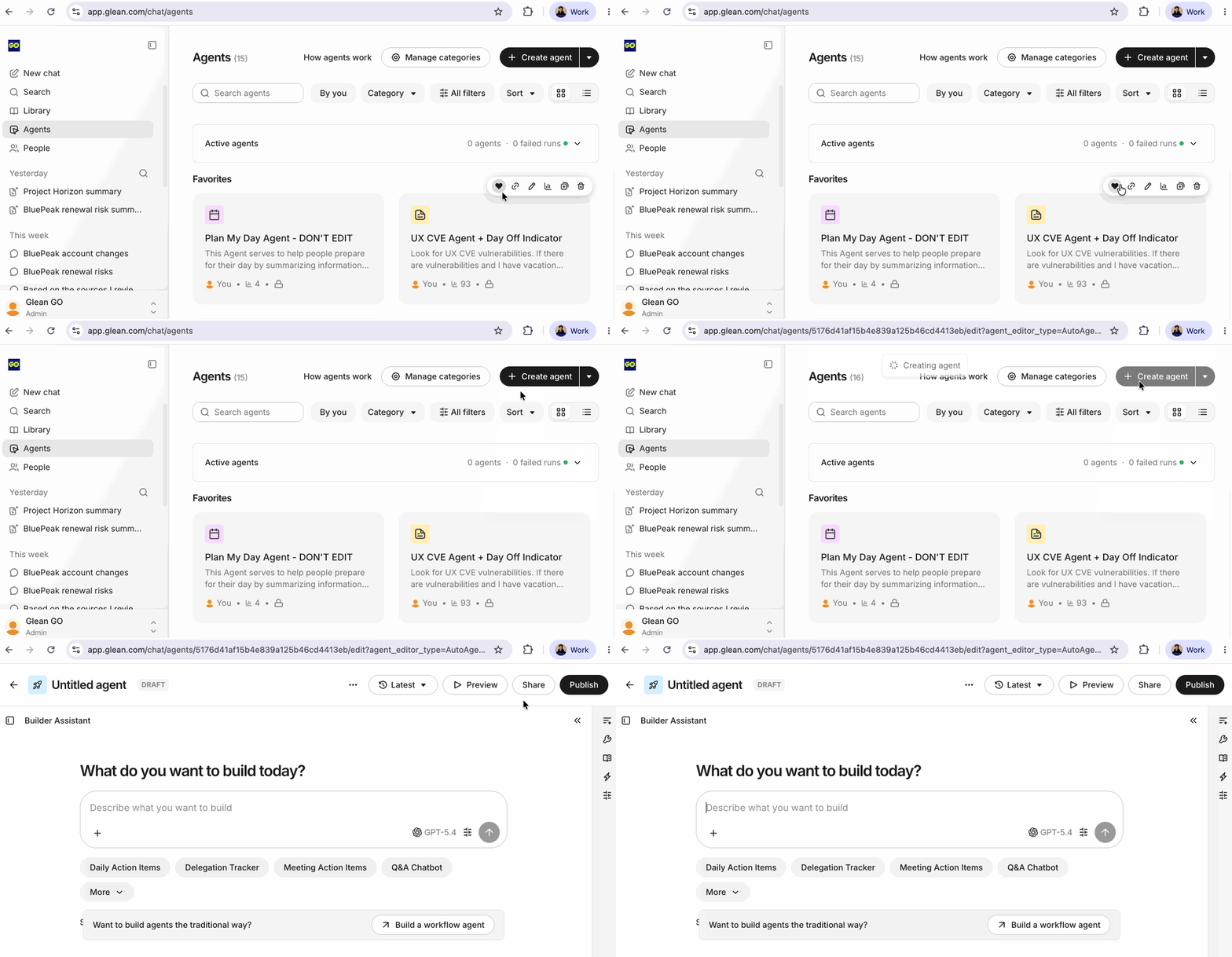
This will open up the Builder assistant allowing you to describe the agent you would like to build. This method of building agents is Glean's "auto mode" where one can describe the goal for the agent in plain language, Glean will architect the logic, pick the tools and generate a design.
Describe Agent
In the chat box enter the following to describe our new agent:
Create me a launch analyst agent that takes a project name as input, does an internal status summary and also does public market research
After a few moments, Glean builds a complete agent — instructions, tools, and a trigger — all from your single sentence. The three-panel builder lets you inspect and refine everything before going live.
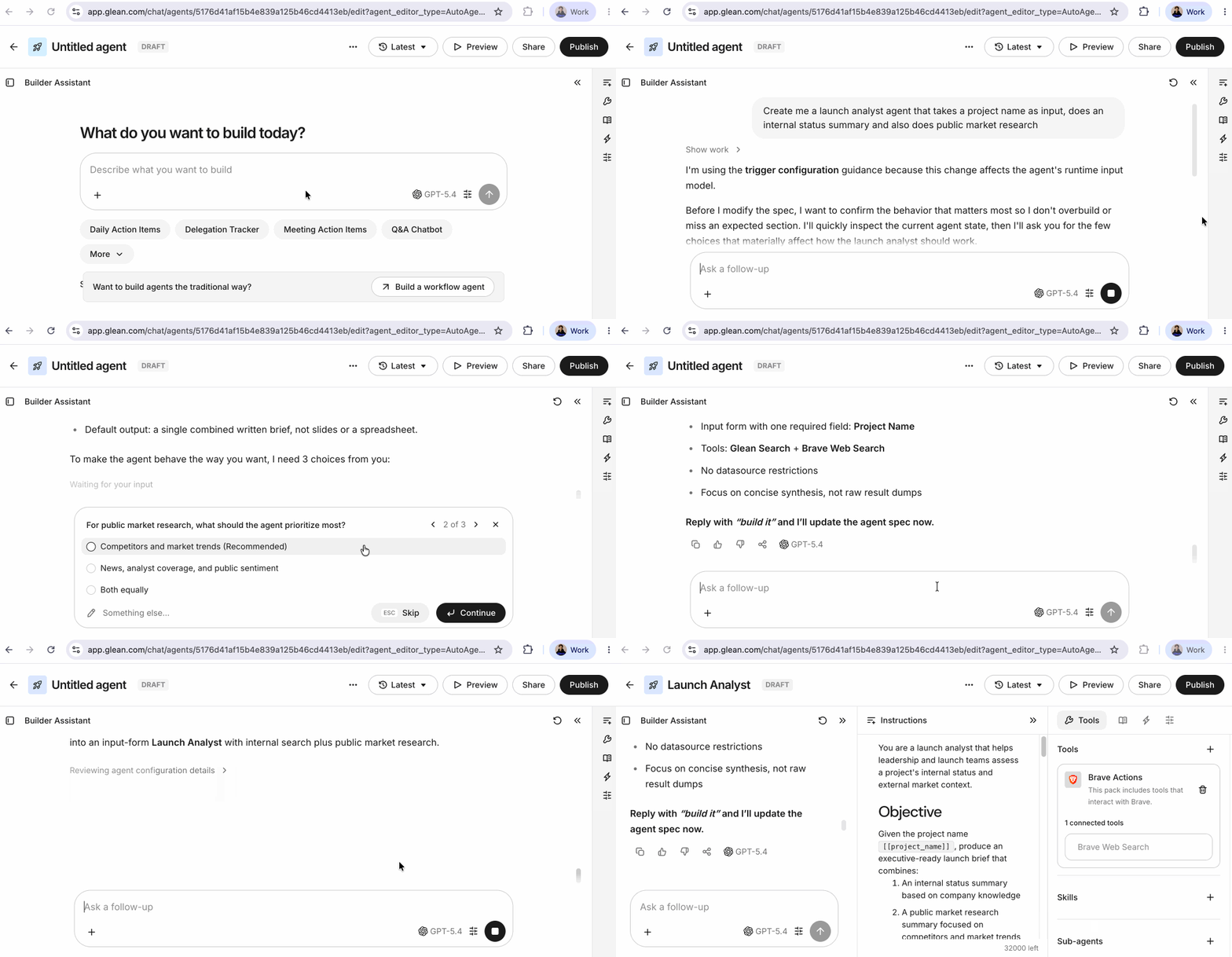
When prompted for input the options marked "recommended" can be selected for simplicity.
Agent build review
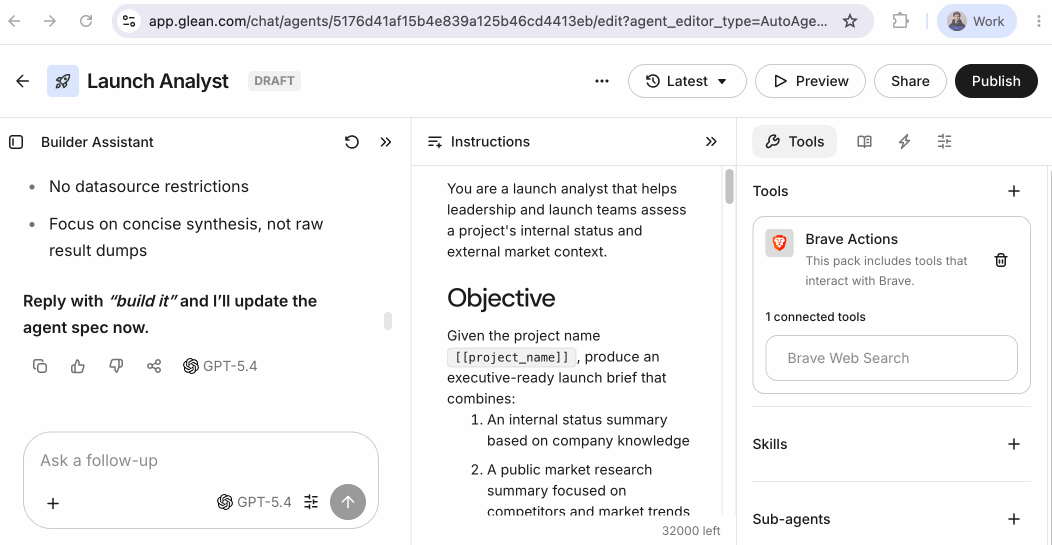
After a few moments, Glean builds a complete agent - instructions, tools and a trigger - all from your single sentence. The three-panel builder lets you inspect and refine everything before going live.
The panel on the left is your builder assistant, your natural language co-pilot. You can keep the conversation going to iterate on the agent without touching any settings manually. Ask Glean to change behavior, add steps, or tighten up the output format — all in plain language. When testing the agent you can paste a bad output back in and ask it to diagnose and fix the issue
The middle panel contains the agent instructions, the behavioral policy for your agent — what it does, how it reasons, and what it delivers. Auto-generated but fully editable.
Edit directly to get hyper-precise on tone, output structure, and edge cases the AI might not have anticipated. Define goals, constraints, and exactly how the final output should be formatted.
The panel on the right contains tools, skills and sub-agents, i.e. everything your agent is allowed to use. Glean selects defaults automatically — you can add, remove, or swap at any time.
Tools connect the agent to data sources like Glean Search and web browsers.
Sub-agents let your agent delegate specific tasks to other specialized agents in the library.
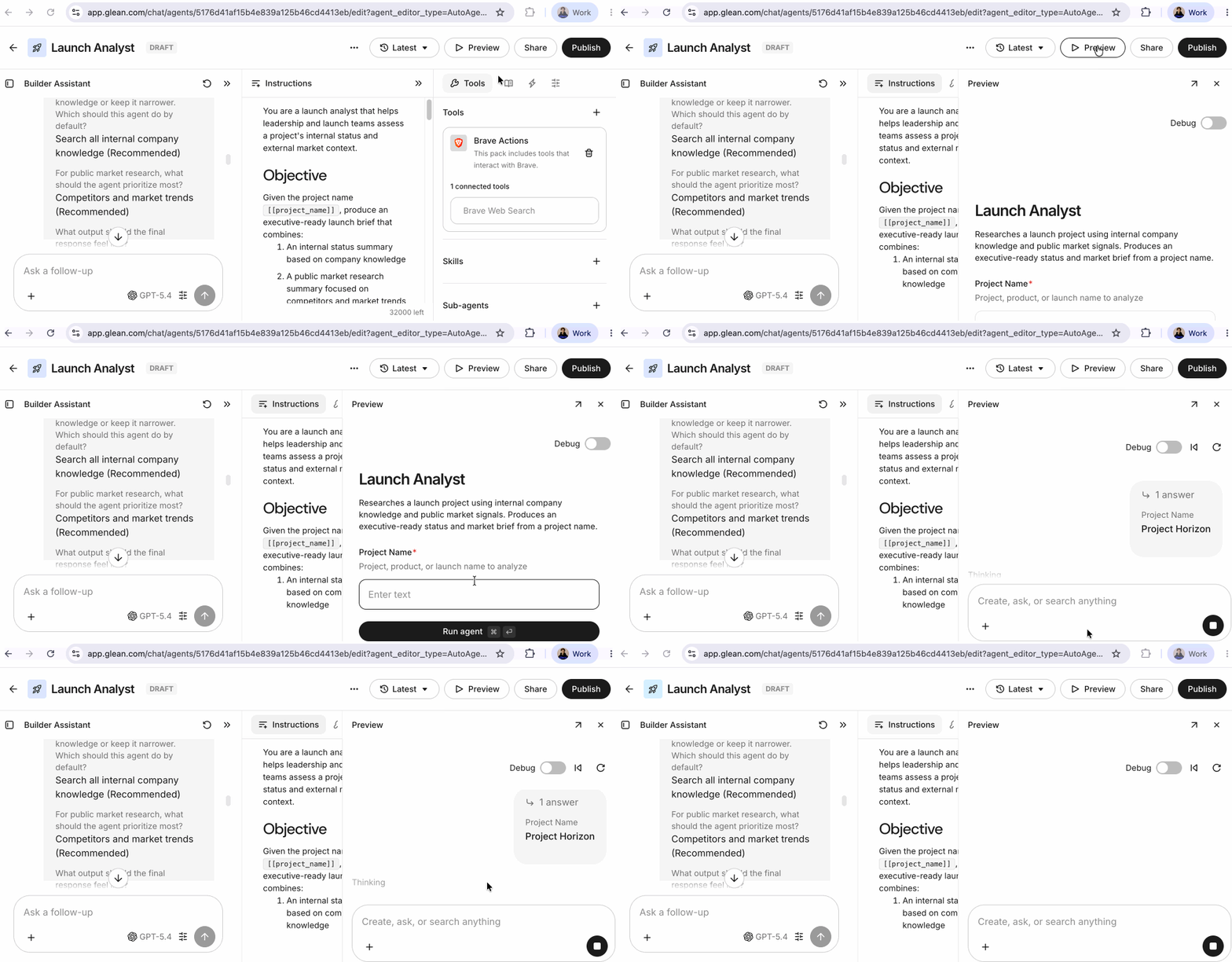
Now it's time to test it out! Click the Preview button in the upper right hand corner to open the live test panel on the right side without leaving the editor.
In the Project Name field, type Project Horizon — the same project from the workshop scenario — then select run agent. Glean will search internal docs, run web research, and produce a full structured briefing - all from the agent you just built..
This lab has demonstrated that AI agents are no longer just conceptual tools—they are concrete, accessible, and transformative components within modern enterprises. Through hands-on exploration, you have learned how to leverage Glean's agentic platform to automate critical workflows, integrate diverse data sources, and maintain rigorous governance and security standards. By dissecting pre-built solutions like the Plan My Day Agent and building custom tools such as a Launch Analyst, you have gained practical experience with branching logic, external integrations (e.g., Workday), and the flexible orchestration of complex tasks.
This experience highlighted three core takeaways:
- Glean Agents make it possible for users—regardless of coding expertise—to build powerful, personalized automations for virtually any business function.
- The platform's agentic reasoning engine excels at handling multi-step, context-aware processes, surfacing actionable insights and saving time across departments.
- Security, compliance, and data integrity are built-in, making these automations reliable for enterprise adoption.
As organizations continue to seek efficiency, scalability, and innovation, Glean Agents lay a robust foundation for ongoing automation and strategic transformation.