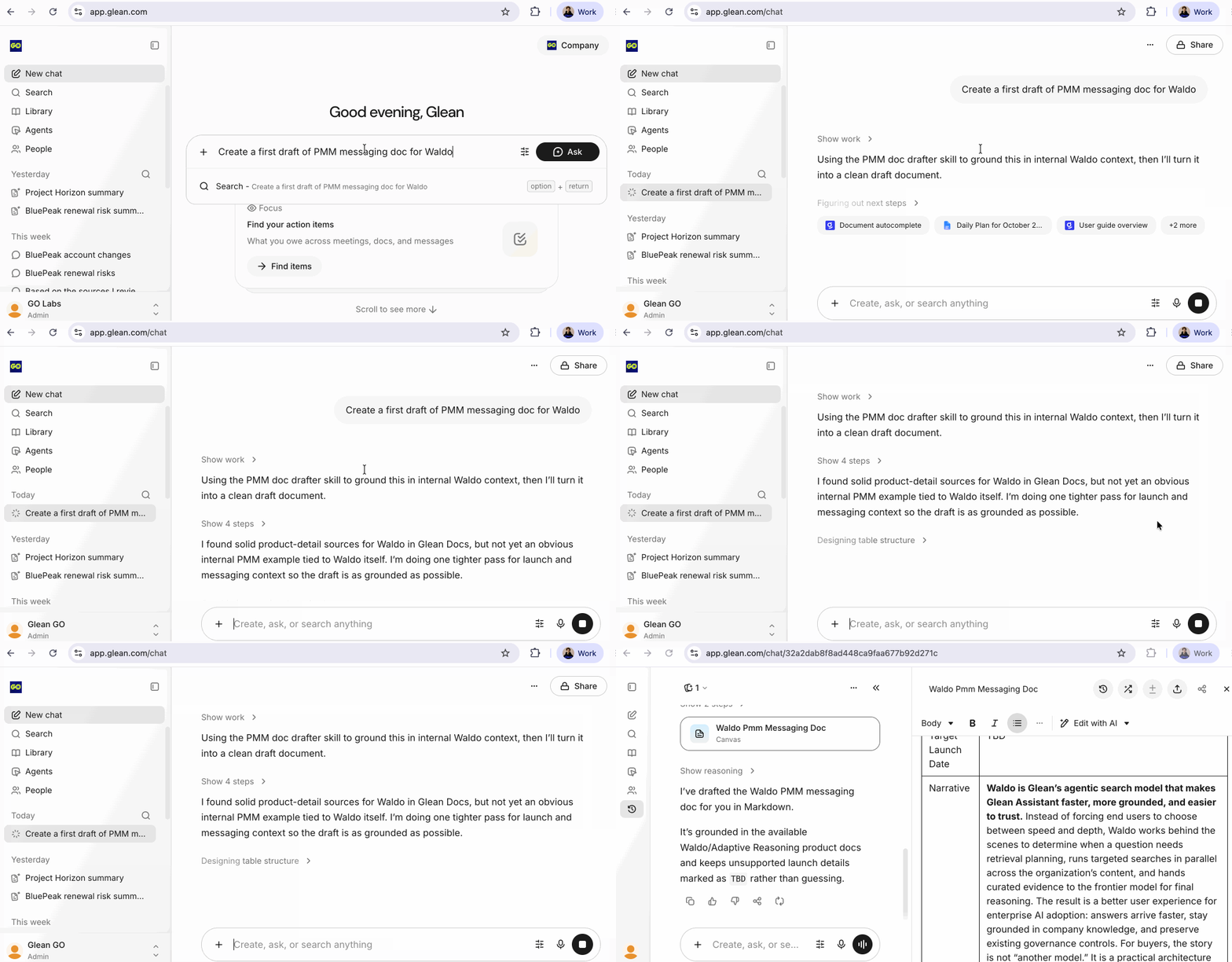
In this hands-on lab, you will get familiar with Glean's skills. Glean Skills are reusable packages of instructions, templates, reference materials, and tools that teach Glean how to perform a specialized task consistently. They capture domain expertise and workflow logic so you don't have to re-prompt Glean from scratch each time.
Glean Skills
Glean Skills are built-in Skills that Glean runs under the hood to power Assistant capabilities. You won't see them in the Skills library or Shared tab. Instead, when Assistant invokes a Glean Skill while answering you, the Skill appears as an intermediate step you can click into to see what it did.
Personal Skills
Create your own Skills tailored to your workflows. Personal Skills are visible only to you and can be enabled, disabled, edited, or deleted at any time from Settings → Skills.
Shared Skills
Skills that teammates share with you, or that your organization publishes for a team or the whole company. Shared Skills appear in a separate Shared area so you can tell them apart from your own. You can use a Skill someone shares with you without recreating it, and you stay on the owner's latest version as they make updates.
Automatic Skill routing
Glean automatically evaluates your query against available Skill descriptions and determines whether a Skill is relevant. If it is, Glean loads the relevant portions of the Skill to inform its response. You can also explicitly reference a Skill by name in your prompt. Skill routing works best in thinking mode.
Interoperability
Skills built for Claude, OpenAI, Cursor, and other platforms that follow the Agent Skills standard can be imported directly into Glean. You can also import Skills from public GitHub repositories using a URL.
Accessing Skills
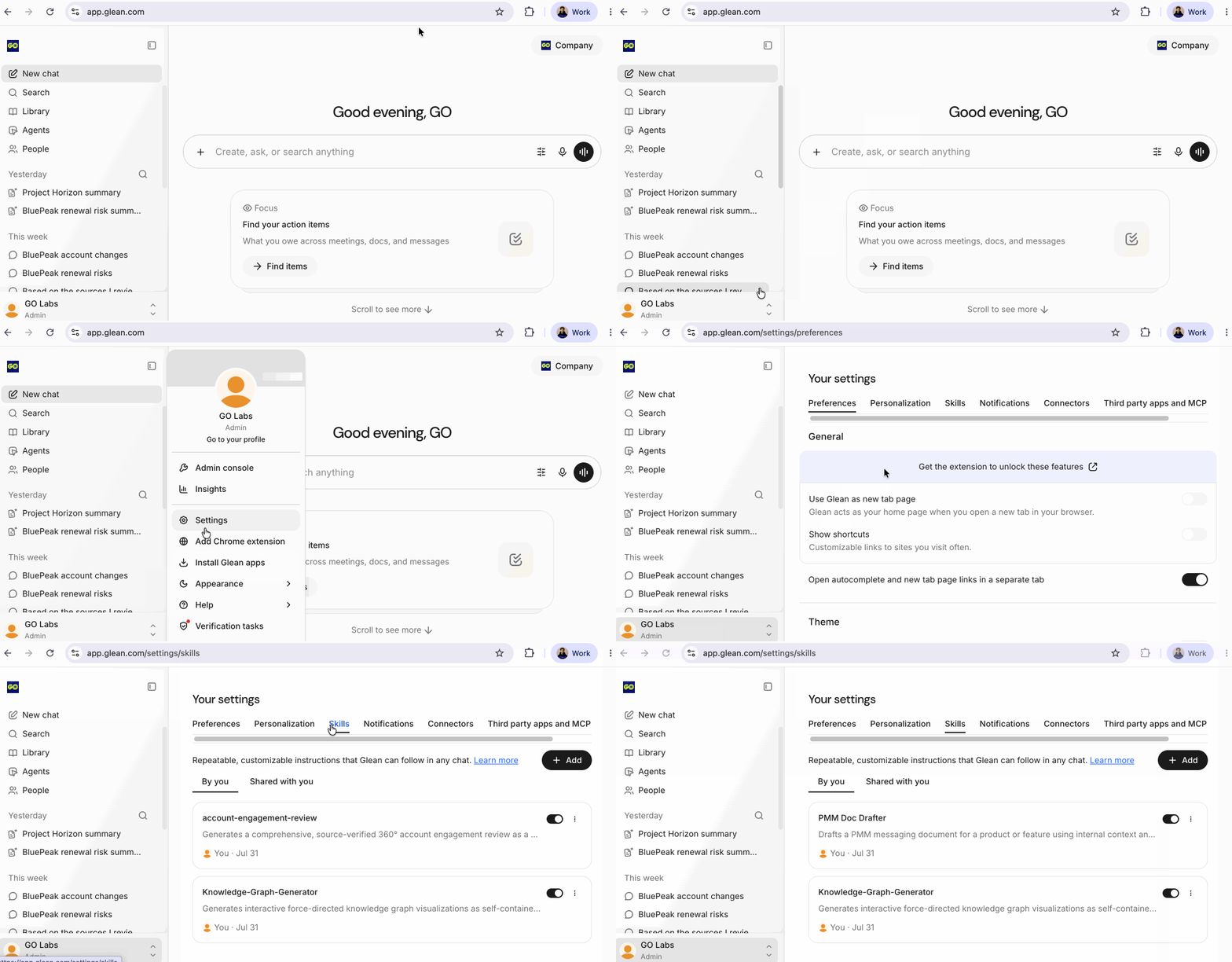
Go to Settings → Skills in your Glean instance. You'll see two tabs:
- Personal — Skills you've created.
- Shared — Skills teammates or your organization have shared with you.
A Skill is structured as a folder containing:
- SKILL.md (required): The main instructions file with YAML frontmatter (
nameanddescriptionfields) and natural language instructions. - Additional files (optional): Templates, examples, scripts, and reference materials.
When selecting a skill in your settings all of the skill structure is made available to view and/or edit. 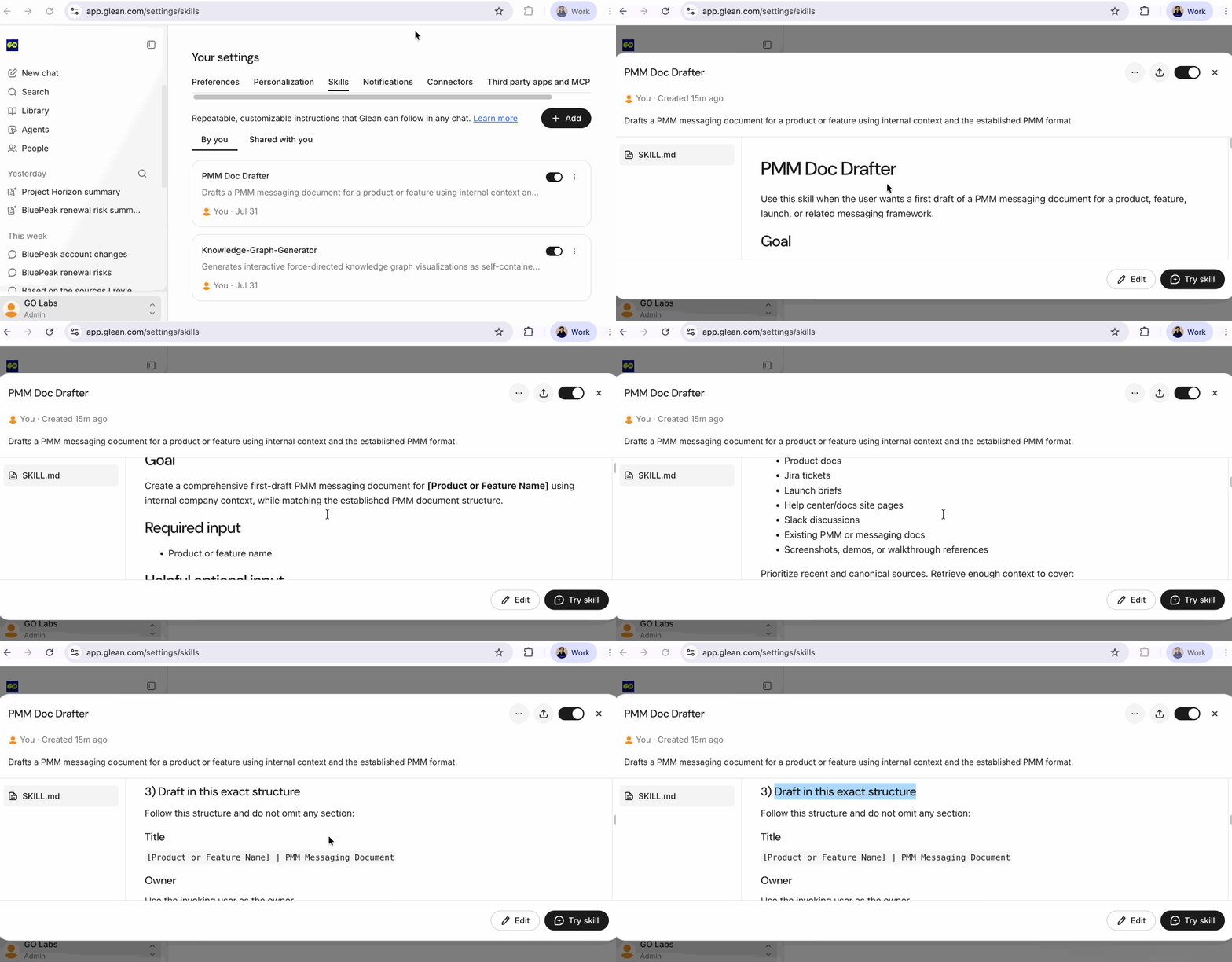
Type the following into the main chat bar and hit Ask:
Create a PMM messaging document for Waldo